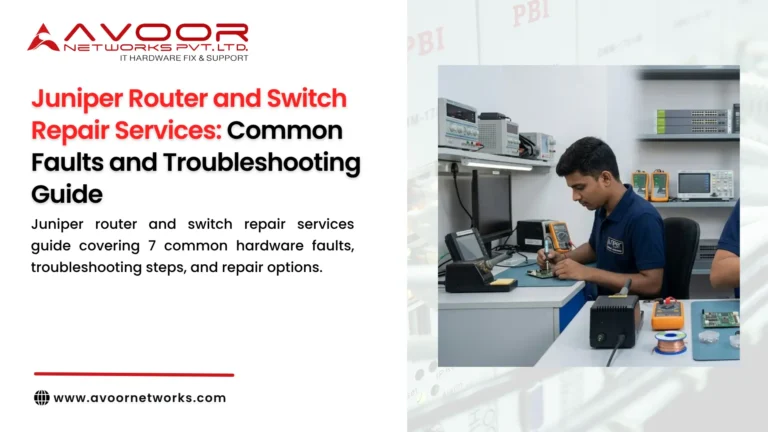
Juniper routers and switches are widely used in enterprise networks, data centers, branch offices, and service provider infrastructure. These devices Juniper router and switch repair services support critical connectivity between servers, applications, storage systems, and business users.
When a Juniper router or switch develops a hardware fault, the impact can range from a single failed interface to a complete network outage. Identifying the symptoms accurately helps IT teams determine whether the issue is caused by configuration, firmware, connectivity, or a physical hardware failure.
This guide covers common Juniper router and switch faults, practical troubleshooting steps, and when professional hardware repair may be required.
1. Juniper router and switch repair services
A Juniper router or switch that fails to power on may indicate a problem with the power supply, input power, internal power distribution, or another hardware component.
Common symptoms
- Device does not start after power is connected.
- Power supply LEDs indicate a fault.
- Device repeatedly restarts during operation.
- Chassis alarms report a power-related issue.
- One power supply is offline while the device continues operating.
Troubleshooting steps
- Verify that the power cable is securely connected and the power source is functioning.
- Inspect the power supply indicators and check for abnormal status.
- Check whether the device reports power supply or chassis alarms.
- If redundant power supplies are installed, verify whether the remaining supply is supporting the device.
- Check the input power source and cable for damage.
- Juniper router and switch repair services
For supported Juniper platforms, commands such as show chassis alarms and show chassis environment pem can help identify chassis alarms and power supply status.
If the power source is confirmed to be healthy but the power supply continues to report a fault, the equipment may require component-level diagnosis or replacement of the affected module.
Important: Do not open a live power supply or attempt internal electrical repairs without appropriate qualifications and safety procedures.
2. Juniper Switch Port Failure and Interface Errors
Switch port failures can affect individual servers, access points, storage systems, or network uplinks. However, a port that remains down does not necessarily indicate a damaged switch interface.
Common symptoms
- Ethernet interface remains down despite a connected cable.
- Link repeatedly goes up and down.
- Interface reports input errors or packet drops.
- Port does not establish connectivity at the expected speed.
- A particular transceiver or cable works on another interface but not on the affected port.
Troubleshooting steps
- Check the physical cable and connected device.
- Verify that the interface is administratively enabled.
- Review the interface operational status and error counters.
- Test with a known-good compatible cable or transceiver, where appropriate.
- Check whether the problem follows the cable, transceiver, or switch port.
- Review interface configuration, including speed, VLAN, and other relevant settings.
Useful Junos commands include:
show interfaces terse
show interfaces extensive
show log messages
If the issue follows a particular interface across multiple known-good connections and configuration checks, the switch port or associated hardware may require further investigation.
3. Juniper Router Routing and Connectivity Problems
A Juniper router may remain operational while traffic fails to reach its intended destination. Routing problems can originate from configuration errors, failed interfaces, incorrect route advertisements, or hardware faults.
Common symptoms
- Network destinations become unreachable.
- Routing protocol neighbours fail to establish.
- Traffic takes an unexpected path.
- Packet loss occurs across a specific network segment.
- A router experiences intermittent connectivity.
Troubleshooting steps
- Check the status of physical and logical interfaces.
- Verify the routing table and the expected destination routes.
- Review routing protocol neighbour status.
- Check recent configuration changes.
- Test connectivity across the affected network path.
- Review device logs for interface, routing, or hardware-related alarms.
Useful Junos commands include:
show route
show ospf neighbor
show bgp summary
show interfaces terse
Juniper router and switch repair services
Use the routing protocol command relevant to the network configuration. For example, show ospf neighbor applies to OSPF deployments, while show bgp summary is relevant to BGP.
A routing issue should not automatically be treated as a hardware failure. Confirm that the device is forwarding correctly and that configuration and upstream connectivity are functioning before recommending physical repair.
Juniper router and switch repair services and Overheating
Enterprise routers and switches depend on effective cooling to operate within their supported temperature limits. Fan faults, blocked airflow, or excessive room temperatures can trigger alarms and may affect device operation.
Common symptoms
- Fan alarms appear in the device logs.
- Cooling fans operate at unusually high speeds.
- Device temperatures rise above normal operating levels.
- The device shuts down or becomes unstable during high traffic.
- Airflow from the chassis is reduced.
Troubleshooting steps
- Check the fan and chassis alarm indicators.
- Review the device’s temperature and environmental status.
- Inspect the rack for blocked airflow or excessive dust.
- Verify that the fan tray is properly installed.
- Review the data center cooling conditions.
- Determine whether the fault is isolated to a fan tray or involves other cooling components.
Juniper chassis documentation describes fan failures and temperature thresholds as conditions that can trigger alarms or protective actions. The correct response depends on the specific hardware model and its documented operating limits.
If a fan tray or cooling component has failed, arrange replacement with a compatible part and follow the manufacturer’s maintenance procedure.
5. Juniper Switch Transceiver and Fibre Connectivity Faults
Optical interfaces are important for connecting switches, routers, servers, and data center equipment across fibre links. Problems with transceivers, fibre cables, or compatibility can cause intermittent connectivity.
Common symptoms
- Fibre interface remains down.
- Link drops intermittently.
- Optical signal levels appear abnormal.
- Interface errors increase under load.
- The device reports transceiver-related warnings.
Troubleshooting steps
- Verify that the transceiver is supported for the specific platform and interface.
- Check the fibre type, connector, and required optical specifications.
- Inspect the cable for damage and confirm that transmit and receive connections are correct.
- Check the optical diagnostics available for the installed transceiver.
- Test using a known-good compatible transceiver and fibre path.
- Verify that the interface configuration matches the intended link speed.
Avoid repeatedly inserting or removing optical components while the equipment is operating unless the hardware documentation supports the procedure.
If the fibre path and transceiver are verified but the interface remains faulty, investigate the switch interface or associated hardware.
6. Juniper Control Board, Line Card, or Chassis Hardware Failure
Modular Juniper platforms may contain control boards, line cards, routing engines, fan trays, and other replaceable components. A failure in one of these modules can affect the entire device or a specific group of interfaces.
Common symptoms
- Line card remains offline.
- Chassis alarms indicate a failed component.
- Multiple interfaces associated with a module become unavailable.
- Device management or control functions become unstable.
- The device reports hardware-related errors during startup.
Troubleshooting steps
- Record the chassis alarms and relevant system log messages.
- Identify the affected slot or hardware component.
- Check whether the component is receiving power and is recognised by the system.
- Review the platform’s documented status and diagnostic commands.
- Determine whether the issue is isolated to the module or could involve the chassis, power, or cooling system.
Useful Junos commands may include:
show chassis alarms
show chassis hardware
show log messages
Do not remove a control board, line card, or other chassis component without checking the model-specific maintenance procedure and the impact on network availability.
For modular equipment, replacement of a failed component may be more practical than repairing the entire chassis, provided the replacement is compatible and the required configuration and software conditions are satisfied.
7. Juniper Router and Switch Boot or Restart Problems
Boot failures and repeated restarts may be caused by software issues, configuration problems, unstable power, overheating, or hardware faults.
Common symptoms
- Device fails to complete startup.
- Router or switch repeatedly restarts.
- Boot messages report errors.
- Device becomes unresponsive after a software or configuration change.
- Hardware alarms appear during startup.
Troubleshooting steps
- Record the startup messages and exact error indicators.
- Verify that the input power and cooling systems are stable.
- Review recent software upgrades or configuration changes.
- Follow the platform’s documented recovery procedure.
- Determine whether the issue is reproducible and whether it points to a specific hardware component.
Avoid performing a factory reset or reinstalling software before checking configuration backups and recovery requirements. Such actions may remove settings and extend the outage.
If the device cannot complete startup after approved recovery steps, further diagnosis may be required to determine whether the problem is related to storage, control hardware, power, or another component.
When Should You Consider Professional Juniper Hardware Repair?
Professional hardware diagnosis may be appropriate when:
- A switch port continues to fail after cable, transceiver, and configuration checks.
- A power supply repeatedly reports a fault despite a verified power source.
- Hardware alarms indicate a failed line card or chassis component.
- Juniper router and switch repair services
- A device experiences repeated restarts associated with a suspected hardware issue.
- Component-level damage or board faults are suspected.
- An older Juniper platform requires repair assessment because compatible replacement equipment is difficult to obtain.Juniper router and switch repair services.
Before sending a device for repair, record its model, serial number, fault symptoms, relevant logs, and previous troubleshooting steps. This information helps the repair team identify the likely fault and plan appropriate testing.
How Avoor Networks Pvt Ltd Supports Juniper Router and Switch Repair
Avoor Networks Pvt Ltd provides multi-brand enterprise network hardware repair and maintenance services for businesses across India.
Our network hardware support includes:
- Juniper router and switch hardware fault diagnosis.
- Network interface and connectivity fault assessment.
- Power supply and cooling component diagnosis.
- Juniper router and switch repair services
- Chip-level PCB repair, where technically feasible.
- Enterprise network hardware repair and preventive maintenance.
- Spare parts support for selected models, subject to availability.
For Juniper equipment experiencing hardware problems, our team can assess the reported fault and determine whether repair or replacement is a practical option. Repair feasibility depends on the device model, fault condition, parts availability, and testing requirements.
For critical network infrastructure, confirm the required manufacturer support and software entitlement arrangements separately. Third-party hardware repair does not automatically restore OEM support or software-update eligibility.
Conclusion
Juniper router and switch faults can result from power supply failures, damaged interfaces, routing problems, cooling issues, transceiver incompatibility, or chassis hardware faults.Juniper router and switch repair services.
The most effective troubleshooting process begins with collecting device alarms and logs, verifying physical connections, checking configuration and software conditions, and isolating the affected component.
When a hardware fault is confirmed, a structured repair assessment can help IT teams determine whether the device can be restored reliably or should be replaced. Accurate diagnosis, compatible components, and appropriate post-repair testing are essential for maintaining dependable enterprise network connectivity.